A playlist refers to a set of curated scenarios that focus on/tackle a specific topic/domain/work role/specialty. We have different playlists subcategories on the platform focusing on:
- Community
- Develop skills
- Career paths
- MITRE ATT&CK
- Threat Emulation
Community
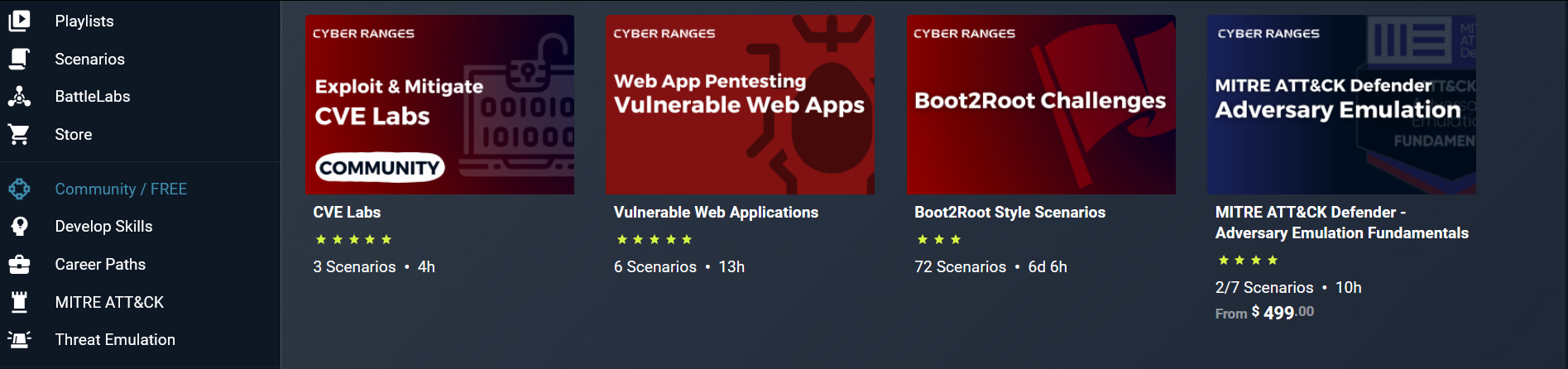
This subcategory will have a curated list of playlists that are part of the free tier subscription:
Develop Skills
This subcategory will have a curated list of playlists aimed at Skill Development:
Career Paths
This subcategory will have a curated list of playlists aimed at Career Development:
MITRE ATT&CK
This subcategory will have a curated list of playlists focusing on the MITRE ATT&CK FRAMEWORK
Threat Emulation
This subcategory will have a curated list of playlists aimed at Attacker/Threat Emulation
Public/ Private Playlist
Playlists can be either public or private. Public playlists are visible to anyone using CYBER RANGES, while private playlists are only visible to the playlist creator.
Playlists can also be customized/created as shown below:
Creating a playlist
To create a playlist, click on NEW PLAYLIST icon to create your playlist:
Upon clicking, you will be presented with the playlist form where you can fill in details about your playlist as follows:
- Name – provide a name for your playlist.
- Description – provide descriptive details about your playlist.
- Type – provide a category in which the playlists fall under.
- Tags {optional} – assign a tag to your playlist, e.g., pwn.
Once you have provided the requested details, click on SAVE to create your playlist.
Note: There are two playlists' statuses:
- Private: playlist will only be visible to the playlist creator.
- Public: playlist will be visible to everyone on the CYBER RANGES platform.
Viewing your playlist
Once a playlist has been created, it can be viewed under the MY PLAYLISTS category:
Adding Scenarios to a Playlist
To add scenarios to your playlist, open your playlist and click on ADD button:
Upon clicking, you will be presented with a list of options to choose from to add scenarios:
The two options provided are:
1. Scenario – you can add a scenario by typing in the scenario name or keyword affiliated with that scenario (Add New Scenario).
2. Sub-playlists - you can add sub-playlist within your playlist. This will add:
a. An existing playlist from the selected playlist (Add existing sub-playlist)
b. Create a new sub-playlist in your playlist (Create new sub-playlist)
Alternatively, on any scenario, you can click on the Playlist button to add that scenario to your playlist:
Custom Cover images
By default, all created playlists use the CYBER RANGES cover image. However, this image can be replaced. To do so, hover the mouse on the default cover image and a prompt will be presented:
Click on Replace cover Image to select from your local file directory the desired image.
The above applies for an added Subplaylist
Playlists Use cases
Playlists have multiple use cases, apart from the providing/acting as a learning path on the platform, you can use the playlists to:
- Group a select set of scenarios - this can be based on the topic the scenarios are focusing on, author, or any other specific metric/criteria.
- Lessons/Course - if you are from an educational entity, you can curate a set of scenarios to be part of a specific curriculum or course content.
- Custom Scenario Path - you can handpick a set of scenarios that are part of a topic you are learning. This enables you to have a systematic way to group and access the scenarios in question.